
.svg)
To install OpenClaw safely on a Mac, run OpenClaw inside a macOS virtual machine, give the agent dedicated cloud credentials with a spend cap, deny shell, file and web tools, connect one chat app for DMs only, and block every inbound path to the machine. We built and tested this setup in October 2026 with OpenClaw 2026.10.7 in a Lume virtual machine, Slack as the chat app and Gemini on Google Cloud Vertex AI as the model.
At a glance
- Result: a Slack DM assistant with messaging tools only, no inbound ports, and a kill switch
- Versions: OpenClaw 2026.10.7, Lume 0.6.1, macOS 26.5.2 guest, Node.js 24.22.1
- Time: several hours across two days, including the problems listed below
- Running cost: the AI model (Gemini 3.1 Flash-Lite: USD $0.25 per million input tokens, $1.50 per million output tokens on the Vertex AI global endpoint) and a Mac
- Verified: the agent tool list in a fresh session,
openclaw sandbox explain, a VNC connection attempt from an iPad that failed, and two reboot tests
Which 10 security settings make an OpenClaw install safe?
These 10 OpenClaw security settings cover the paths a manipulated agent or an outsider could use in our lab build. Each row links the setting to the step below that shows the exact configuration.
| # | OpenClaw security setting | Config or action | Threat / vulnerability we are mitigating | Step |
| 1 | Run OpenClaw in a macOS virtual machine | Lume virtual machine, no shared folders, no Apple ID | The agent reaching your files, browser sessions and keychain | 1 |
| 2 | Agent-owned model credentials | Dedicated Google Cloud project, service account with the Vertex AI User role only | A leaked key reaching anything beyond model calls | 3 |
| 3 | Hard spend cap | Enforced budget cap on Vertex AI, with alerts | Runaway or abused model spend | 3 |
| 4 | Messaging tool profile | tools.profile: "messaging", deny group:runtime, group:fs, group:web |
A manipulated agent running commands, reading files or fetching URLs | 4 |
| 5 | Code mode off | tools.codeMode.enabled: false |
An exec tool appearing while shell tools are denied |
4 |
| 6 | Gateway on localhost with token auth | gateway.bind: loopback, gateway.auth.mode: token |
Other machines on the network reaching the gateway | 5 |
| 7 | Network discovery off | Bonjour plugin disabled, discovery.mdns.mode: off |
The gateway advertising itself on the local network | 5 |
| 8 | DM-only Slack app with an allowlist | Manifest with five bot scopes, Socket Mode, dmPolicy: allowlist |
Strangers and channels reaching the agent, and a public webhook URL | 6 |
| 9 | Tokens in the OpenClaw secret store | openclaw secrets store set <NAME> --kind secret, typed in the virtual machine |
Tokens in config files, chat transcripts or the agent's view | 6 |
| 10 | Inbound access blocked | macOS firewall with stealth mode, Lume blocked inbound, key-only SSH from the host | Screen sharing or SSH from other devices on the network | 7 |
Steps 8 to 10 cover automatic restart, the OpenClaw security audit and the kill switch.
Key insight
Check every OpenClaw security setting from outside the machine
Use a fresh session to confirm the tool list, a second device to confirm the network blocks, a reboot to confirm recovery, and openclaw security audit for the rest.
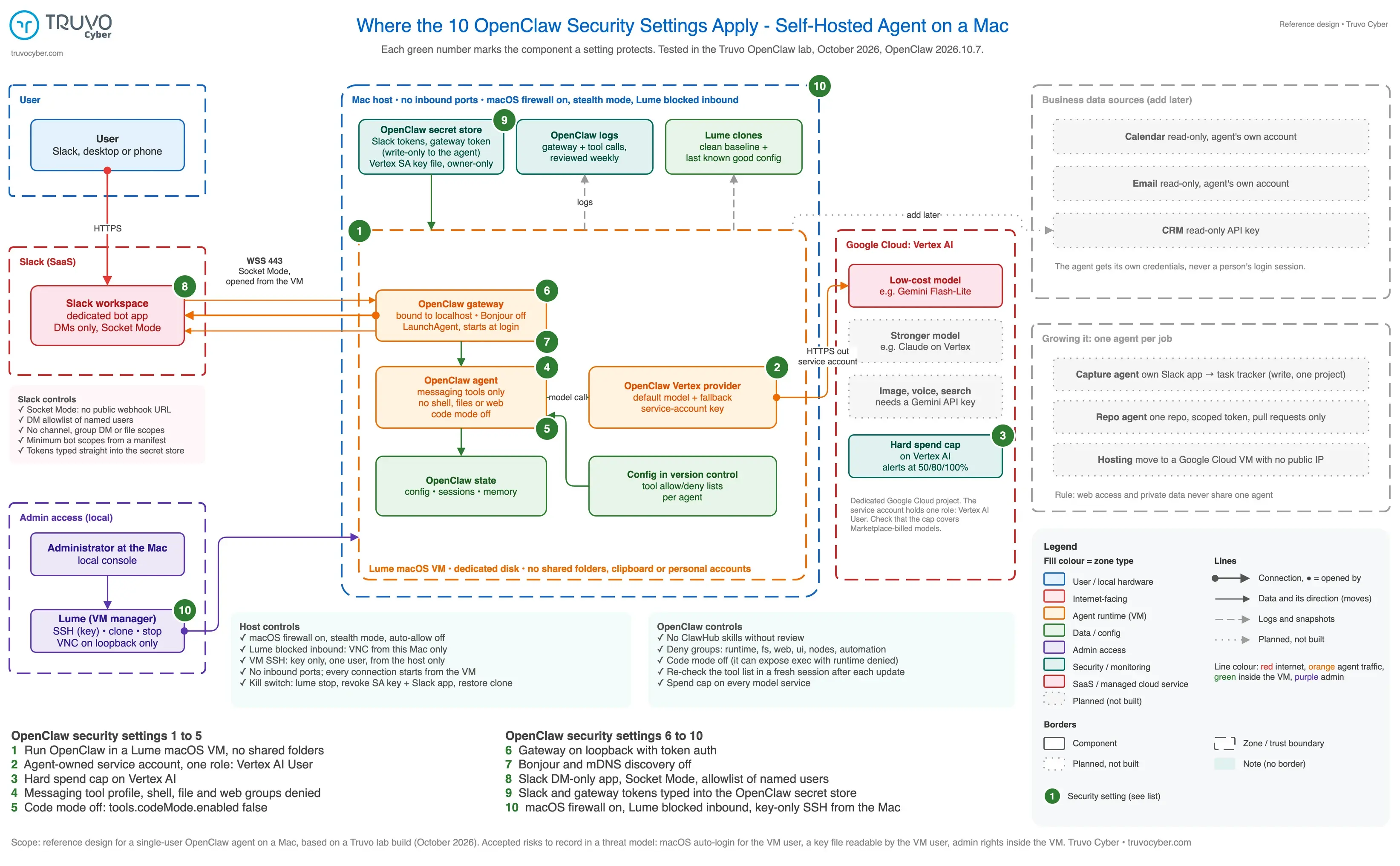
Figure: Where the 10 OpenClaw security settings apply in a self-hosted agent on a Mac. Each green number matches a row in the table. Based on the Truvo OpenClaw lab, October 2026. Hover to zoom, click to open the full diagram.
New to OpenClaw? The What Is OpenClaw? post covers what OpenClaw does and how the gateway, agent and model fit together. The steps below assume an Apple silicon Mac.
Why install OpenClaw in a virtual machine on the Mac?
A virtual machine gives OpenClaw a separate operating system, so a mistake or a manipulated agent stays inside the virtual machine and away from your files, browser sessions and keychain. The OpenClaw project's security policy describes OpenClaw as local-first agent infrastructure for trusted operators, and the OpenClaw docs state that sandboxing is off by default. On our install, openclaw sandbox explain reported mode: off.
| Install option | What OpenClaw can reach |
| Directly on your Mac | Your user account: files, browser data, keychain items and anything else your user can open |
| macOS virtual machine (our build) | Only what you put inside the virtual machine: the agent's own keys, the OpenClaw state and the network |
Step 1: Create a clean macOS virtual machine with Lume
Lume creates macOS virtual machines on Apple silicon from the command line. Our build used:
lume create openclaw --ipsw <path-to-macOS-26.5.2.ipsw> --cpu 4 --memory 8 --disk-size 100 --unattended tahoe --storage <external-ssd>Three things we learned:
- The unattended build failed on macOS 26.6.2. The guest setup script stopped at
diskutil apfs updatePrebootwith error -69854, and Lume deleted the virtual machine. The same command on macOS 26.5.2 worked. - Lume needs no Full Disk Access when the virtual machine lives on an external SSD. The internal disk had about 12 GB free, so the 100 GB virtual disk went on the SSD.
- Clone the clean machine before installing anything. Lume 0.6.1 has no snapshot command, and
lume clonetook about two seconds on a stopped virtual machine. We keptopenclaw-goldenas the clean baseline.
Leave out shared folders, and use no Apple ID inside the virtual machine.
Step 2: Install Node.js and OpenClaw inside the virtual machine
Install Node.js and OpenClaw inside the virtual machine, never on the host Mac. We installed Node.js 24.22.1 from the nodejs.org package after checking the SHA-256 and the Apple signature, set the npm prefix to ~/.npm-global, and pinned openclaw@2026.10.7 so updates happen on purpose. OpenClaw 2026.10.7 requires Node.js 24.22.1 or later in the 24 line.
Step 3: Give the OpenClaw agent a dedicated Google Cloud identity and a spend cap
The OpenClaw agent should call models with credentials issued to the agent, in a cloud project created for the agent. Our Google Cloud setup:
| Item | What we set up | Why |
| Project | A dedicated project for the agent lab | Billing, quotas and access stay separate from everything else |
| API | Vertex AI (the console now calls the service Gemini Enterprise Agent Platform) | Hosts Gemini and Claude models |
| Service account | One role only: Vertex AI User (roles/aiplatform.user) |
The key can call models and nothing else |
| Key | A JSON key, stored only inside the virtual machine with mode 0600 | Google recommends Workload Identity Federation, which needs an identity provider a local virtual machine does not have |
| Budget | An enforced spend cap on the Vertex AI service, plus alerts at 50, 80 and 100 percent | A runaway agent stops at the cap |
Three setup surprises:
- Accepting a Model Garden banner enabled about 25 APIs at once, Compute Engine included, and the default Compute service account received roles we did not need. We removed those roles.
- Our new project started with a Claude quota of zero. Claude calls returned a 429 quota error until a quota request is approved, while Gemini worked on the first call.
- OpenClaw drops
GOOGLE_APPLICATION_CREDENTIALSfrom the config file's environment section in this version. A small wrapper script exports the variable before starting OpenClaw:
#!/bin/bash
set -euo pipefail
export GOOGLE_APPLICATION_CREDENTIALS=~/.openclaw-secrets/openclaw-sa.json
export GOOGLE_CLOUD_PROJECT=<your-project-id>
export GOOGLE_CLOUD_LOCATION=global
exec ~/.npm-global/bin/openclaw "$@"
Check whether the spend cap covers every model the agent can reach. Claude on Vertex AI is billed through Google Cloud Marketplace, and we have not yet confirmed that the Vertex AI cap applies to Marketplace billing.
Step 4: Lock down OpenClaw tools before connecting any chat app
Lock down OpenClaw tools first, because a bare test run in our lab gave the model a shell tool with about 40 other tools reachable through the shell. Our tool settings:
{
  agents: { defaults: { model: { primary: "google-vertex/gemini-3.1-flash-lite" } } },
  tools: {
    profile: "messaging",
    deny: ["group:runtime", "group:fs", "group:web", "group:ui", "group:nodes",
           "group:automation", "sessions_spawn", "subagents"],
    codeMode: { enabled: false },
  },
}
Turn off code mode explicitly. With no code mode setting, OpenClaw's auto default switched code mode on for our Gemini model and gave the model an exec tool with the shell tools denied. The OpenClaw docs say the default Node executor shares the Gateway process's operating-system privileges.
Watch out
OpenClaw code mode can add an exec tool while shell tools are denied
With no code mode setting, the OpenClaw auto default turned code mode on for our Gemini model. Set tools.codeMode.enabled: false and confirm the tool list in a fresh session.
Check the result in a fresh session, because an existing session can keep the tool list from the start of that session. After the change, a fresh session showed messaging and session tools only.
Step 5: Keep the OpenClaw gateway on localhost and stop network discovery
The OpenClaw gateway should listen on localhost only, with token authentication and network discovery turned off. Our gateway settings were gateway.bind: loopback (the default on a regular host), gateway.auth.mode: token, and port 18789. We stored the gateway token in OpenClaw's protected secret store.
The gateway also advertised itself on the local network over Bonjour until we turned discovery off:
{
  plugins: { entries: { bonjour: { enabled: false } } },
  discovery: { mdns: { mode: "off" } },
}
Step 6: Connect Slack for direct messages only
Connect Slack with a DM-only app built from a manifest, and keep the Slack tokens out of chat transcripts. Slack's app creation screen highlights an AI agent template, and that template adds features and wider conversation access than a DM bot needs. We used From a manifest with five bot scopes and one event:
{
  "display_information": { "name": "OpenClaw Brief" },
  "features": {
    "bot_user": { "display_name": "OpenClaw Brief", "always_online": true },
    "app_home": { "home_tab_enabled": false, "messages_tab_enabled": true, "messages_tab_read_only_enabled": false }
  },
  "oauth_config": { "scopes": { "bot": ["chat:write", "im:history", "im:read", "im:write", "users:read"] } },
  "settings": { "socket_mode_enabled": true, "event_subscriptions": { "bot_events": ["message.im"] } }
}
Socket Mode means OpenClaw opens an outbound WebSocket to Slack, so the machine needs no public webhook URL. Socket Mode needs an app-level token (xapp-, scope connections:write) and the bot token (xoxb-).
Type both tokens straight into OpenClaw's secret store inside the virtual machine, one at a time:
openclaw secrets store set SLACK_BRIEF_BOT_TOKEN --kind secret
openclaw secrets store set SLACK_BRIEF_APP_TOKEN --kind secret
Stored values are write-only to the OpenClaw CLI, web UI and agent. The store itself is an unencrypted SQLite file readable by the virtual machine user, so the virtual machine boundary does the protecting.
Slack scopes limit what the bot can do. Who the bot answers is set in OpenClaw:
{
  channels: { slack: {
    mode: "socket", dmPolicy: "allowlist", allowFrom: ["<your-slack-member-id>"],
    groupPolicy: "disabled", dm: { groupEnabled: false },
    accounts: { brief: {
      appToken: { source: "store", provider: "default", id: "SLACK_BRIEF_APP_TOKEN" },
      botToken: { source: "store", provider: "default", id: "SLACK_BRIEF_BOT_TOKEN" },
    } },
  } },
}
Step 7: Block inbound access to the Mac and the virtual machine
Block every inbound path, then test from a second device. Two paths needed work in our lab.
SSH into the virtual machine. We allowed key-only SSH, for one user, from the host Mac only, in /etc/ssh/sshd_config.d/:
PasswordAuthentication no
KbdInteractiveAuthentication no
PermitRootLogin no
AuthenticationMethods publickey
AllowUsers <vm-user>@<host-bridge-address>
The Lume VNC screen server. Lume's VNC server answered on the Mac's network address as well as on localhost, and Lume 0.6.1 has no setting to change the listen address (trycua/cua #3878 asks for one). The Mac's firewall had never been switched on. We turned on the macOS Application Firewall, turned off automatic allow for signed software, enabled stealth mode and blocked Lume:
FW=/usr/libexec/ApplicationFirewall/socketfilterfw
sudo $FW --setglobalstate on
sudo $FW --setstealthmode on
sudo $FW --add ~/.local/share/lume/lume.app
sudo $FW --blockapp ~/.local/share/lume/lume.app
A VNC connection from an iPad on the same network then failed. A test from the Mac itself proves nothing, because traffic to the Mac's own address never leaves the Mac.
Step 8: Make OpenClaw restart automatically after a reboot
OpenClaw installs as a macOS LaunchAgent, which starts only after a user logs in, so the virtual machine needs automatic login. We installed the service with the wrapper from Step 3 (openclaw gateway install --wrapper <path>).
Automatic login took three attempts:
sysadminctl -autologin setfailed withSACSetAutoLoginPassword error:22, even with a verified password.- The System Settings toggle worked on the second off and on.
- Removing the user's password to make automatic login easier is a bad trade: an admin user with an empty password gives anything running as that user an easy path to root. We restored a passphrase.
Watch out
An empty password on the OpenClaw virtual machine user is worse than automatic login
An admin user with no password gives anything running as that user an easy path to root. Keep a passphrase and turn on automatic login in System Settings.
macOS stores the automatic login password obfuscated, not encrypted, in /etc/kcpassword. We accepted that risk because only the host Mac can reach the virtual machine's screen. Two reboot tests followed: each time the virtual machine logged in, the gateway started and Slack reconnected within about a minute.
Step 9: Run the OpenClaw security audit and save a known-good copy
Run openclaw security audit after setup and read every finding. When we ran the audit on 2026-10-26, two warnings applied to the messaging-only build in this guide:
| Audit warning | Meaning | Fix |
plugins.extensions_no_allowlist |
plugins.allow is unset, so any discovered plugin may load |
List trusted plugin IDs in plugins.allow |
plugins.installs_unpinned_npm_specs |
The Slack plugin install is not pinned to a version | Pin plugin installs to exact versions |
A third warning, tools.exec.security_full_configured, appeared after we later gave a lab agent a shell with exec mode full. Set exec security to allowlist or ask before any OpenClaw agent gets a shell.
After the audit, clone the configured virtual machine (we named the copy openclaw-configured) so a broken update can be rolled back in minutes.
Step 10: Write the OpenClaw kill switch before the agent gets any data
A kill switch for this OpenClaw build has three steps, written down before the agent touches any account:
- Stop the virtual machine:
lume stop openclaw. - Revoke every credential at the source: delete the service account key in Google Cloud, and remove the Slack app or revoke both Slack tokens.
- Restore the clean clone before any restart.
Revoke at the source, because the configured clone holds copies of the same keys. Uninstalling OpenClaw from this setup means the same three steps plus deleting both virtual machines.
What to do before giving OpenClaw access to real data
Add one data source at a time, each with a read-only credential issued to the agent, and keep web access and private data in separate agents. Every credential widens what a manipulated agent could reach. The agentic AI security architecture guide covers the controls that apply to any AI agent, and an agent that can act on company systems deserves AI penetration testing before the agent goes into daily use.
Giving an OpenClaw agent a shell changes the picture most. With sandboxing off, shell commands run as the virtual machine user and can read the agent's own keys and tokens. Our next lab write-up covers what changes with a sandbox. To get each OpenClaw lab update by email, subscribe to the Truvo newsletter at the bottom of this page.
A safe OpenClaw setup is a series of small, checkable decisions
None of the steps above is hard alone. The safety of an OpenClaw install comes from making each decision on purpose and then checking the decision from outside: a fresh session for tools, a second device for the network, a reboot for recovery and the audit for everything else.
Plan your AI agent before it gets keys
Fit AI agents into an effective security program before they touch company accounts.
Frequently asked questions about setting up OpenClaw safely
How long does a safe OpenClaw install take?
Our safe OpenClaw install on a Mac took several hours across two days, including a failed macOS build, a Claude quota request and three attempts at automatic login. A repeat build with the same versions and these notes should take a few hours.
Do I need a Mac mini for OpenClaw?
OpenClaw runs on macOS, Linux and in containers, so a Mac mini is one option. Our build used a macOS virtual machine created with Lume, which needs an Apple silicon Mac. The Mac stays on for the agent to stay reachable, and an external SSD can hold the virtual machine disk.
Can I install OpenClaw directly on my Mac?
OpenClaw installs directly on a Mac, and an agent installed that way can reach whatever your user account can reach. A virtual machine keeps files, browser sessions and keychain items out of reach and gives you a clean copy to restore.
Is OpenClaw safe to use with Slack?
OpenClaw works safely with Slack when the Slack app is DM-only, built from a manifest with minimum scopes, uses Socket Mode, and OpenClaw answers only an allowlist of named users. Slack scopes limit what the bot can do. The OpenClaw allowlist decides who the bot answers.
How do I uninstall OpenClaw safely?
To uninstall OpenClaw from a virtual machine setup, stop the virtual machine, revoke the agent's model key and chat tokens at the source, then delete the virtual machine and any clones. Revoke at the source, because clones hold copies of the same keys.
Which model should OpenClaw use?
Our lab used Gemini 3.1 Flash-Lite on Vertex AI as the default because the model worked on the first call and costs USD $0.25 per million input tokens. The OpenClaw docs note that smaller, cheaper models resist prompt injection less, so stronger models suit agents that read untrusted content.
Planning an AI agent near company systems? Truvo offers security architecture reviews that map what an agent can reach before the agent gets credentials. Book a scoping call, or subscribe to the newsletter at the bottom of this page for the next OpenClaw lab results.