
.svg)
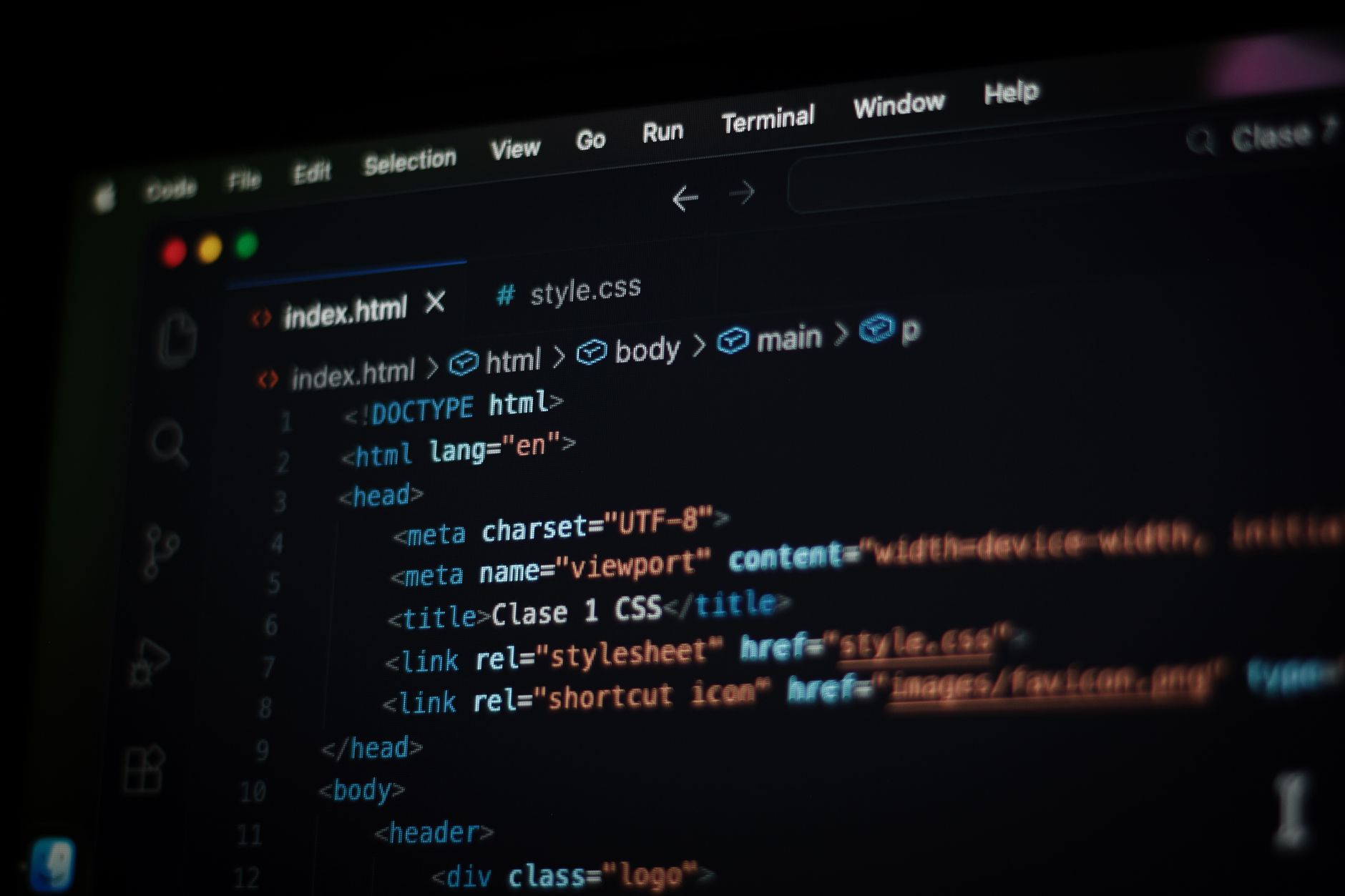
By the end of this guide, a complete beginner will be able to open a Linux terminal, move around the file system, and create, copy, and rename files using typed commands instead of a mouse. That is the whole goal: comfort with a handful of commands that cover most of what a beginner needs.
Linux is worth learning because of where it runs: servers, cloud infrastructure, and many of the tools used in cybersecurity work are built on it, and the terminal is still the fastest way to operate them. Comfort with basic commands is one of the first practical skills that makes the rest of a technical security role easier to pick up.
This guide assumes access to a working Linux environment already, such as Ubuntu installed on a computer or running in a virtual machine. Setting up that environment is its own topic and is not covered here.
1. What Linux Is
Linux is not, by itself, a complete operating system. Linux is the kernel: the core program that talks directly to a computer's hardware, manages memory, and decides which program gets to run next. A kernel on its own has no desktop, no file manager, and no way to install software.
Ubuntu is a complete operating system built around the Linux kernel. It pairs the kernel with a large collection of other software, including a desktop environment, system utilities, and a package manager for installing programs, into something a person can install and use. Other Linux distributions, such as Fedora or Debian, pair the same kernel with a different set of surrounding software, which is why "Linux" and a specific distribution like Ubuntu are not quite the same thing.
Unix, developed in the late 1960s and 1970s, shaped the design both Linux and Ubuntu still follow today. Unix introduced the idea of small, single-purpose programs that could be combined, treating almost everything, including hardware devices, as a file, and organizing storage into a single tree of directories starting from one root. Linux was written from scratch in 1991 rather than copied from Unix source code, but it followed that same design closely enough to run much of the same software and use many of the same commands.
2. Terminal, Shell, and Kernel: How They Work Together
These three terms describe three different layers of the same system, and it helps to separate them before typing anything.
The kernel is the core described above: the program that manages hardware, memory, and running processes. A user never talks to the kernel directly.
The shell is the program that reads the commands a person types, figures out what they mean, and asks the kernel to carry them out. Bash is Ubuntu's default shell, and one of the most widely used shells on other Linux systems too.
The terminal is the window on screen where a person types. The terminal's only job is to display text in and out; the shell running inside it is what does the work.
Typing ls shows how the three pieces cooperate: the terminal passes the typed text to the shell, the shell recognizes ls as a command, the shell asks the kernel to read the current directory's contents, and the kernel hands that list back up through the shell to the terminal, which displays it.
Not every command works the same way behind the scenes. Some commands, such as cd, are handled directly by the shell itself, with no separate program involved at all. Others, such as ls, are separate programs stored on disk that the shell locates and runs on the user's behalf. The difference rarely matters for day-to-day use, but it explains why cd cannot be run outside of a shell: there is no standalone cd program to run.
3. Opening a Terminal on Ubuntu
On Ubuntu, the terminal can be opened with the keyboard shortcut Ctrl + Alt + T. It can also be launched from the Activities menu or an application launcher, depending on the desktop in use.
Once it opens, a line of text appears, called the prompt. It typically shows a username, the computer's name, and the current location, ending in a dollar sign ($). The prompt is the terminal's way of saying it is ready for a command; it is not part of anything a reader needs to type.
Every example in this guide that shows a dollar sign is showing the prompt for context only. When a line reads:
yourname@yourcomputer:~$ lsonly ls gets typed. The rest of that line is what the terminal already displays.
4. Basic Navigation in the Linux Terminal
These four commands cover the everyday movement a beginner needs around the file system. Each can be typed exactly as written, without the $.
Check the current location:
pwdpwd stands for print working directory. It prints the full path of the directory the terminal is currently "in," which is useful to confirm before running any other command.
List what is in the current directory:
lsls lists the files and folders inside the current directory. An empty directory produces no output at all.
Move into a subdirectory:
cd DocumentsThis moves into a folder named Documents, assuming one exists in the current directory. After running it, pwd would show Documents added to the end of the path.
Move up one level:
cd .... always refers to the parent directory, the one directly above the current one. Running this moves back up one level, regardless of what the current directory is named.
Return to the home directory:
cdTyping cd with nothing after it is a shortcut back to the user's home directory, from anywhere in the file system.
5. Understanding Linux File Paths
A "directory" is Linux's term for what is commonly called a folder. The two words mean the same thing throughout this guide and elsewhere in Linux documentation.
A path describes a location in the file system, and it comes in two forms.
An absolute path starts from the root of the file system and always points to the same place no matter where the terminal currently is. The root is written as a single forward slash, /. An absolute path to a Documents folder inside a home directory might look like /home/yourname/Documents, and it always refers to that exact location.
A relative path is written from the current directory and depends on where the terminal currently is. Typing cd Documents only works if Documents exists inside whatever directory is currently active; the same command typed from a different location would either move somewhere else or fail.
A few symbols show up constantly in paths:
/on its own is the root of the entire file system.~is a shortcut for the current user's home directory, so~/Documentsmeans the Documents folder inside that user's home directory, regardless of the full path behind it..refers to the current directory itself...refers to the parent of the current directory, one level up.
6. Creating, Copying, and Renaming Files
Four commands cover creating, copying, and renaming files and folders.
Create a new directory:
mkdir project-notesmkdir makes a new, empty directory with the given name inside the current location.
Create a new, empty file:
touch readme.txtIf readme.txt does not already exist, touch creates it as an empty file. If a file by that name already exists, touch does not erase or change its contents; it only updates the file's recorded modification time.
Copy a file:
cp readme.txt readme-backup.txtcp copies a file to a new name or location, leaving the original in place. If readme-backup.txt already existed, this command overwrites it with the copy, without asking for confirmation first.
Move or rename a file:
mv readme-backup.txt notes-backup.txtmv moves a file to a new location, and renaming is really just a move to a new name in the same directory. As with cp, if a file already exists at the destination name, mv overwrites it without a prompt. Since renaming or moving onto an existing name can silently replace that file's contents, it is worth running ls first to check that the destination name is not already in use for something that needs to be kept.
7. Helpful Habits for New Terminal Users
A few habits make the terminal noticeably less frustrating once they become automatic.
Linux is case-sensitive. Notes.txt, notes.txt, and NOTES.TXT are three different filenames as far as the shell is concerned. A command that references the wrong case will not find the file.
Spaces in filenames need special handling. The shell normally treats a space as the boundary between separate words in a command, so a filename like project notes.txt has to be wrapped in quotation marks, as in "project notes.txt", or have the space escaped with a backslash, as in project\ notes.txt. Many Linux users avoid the issue entirely by using hyphens or underscores instead of spaces in filenames.
Quote or escape paths that contain spaces the same way, whether typing them directly or copying one from elsewhere.
Tab completion saves time and prevents typos. Typing the first few letters of a file or folder name and pressing the Tab key lets the shell fill in the rest automatically, or show the possible matches if more than one name fits.
The Up Arrow recalls previous commands. Pressing it cycles backward through commands already run in that terminal session, which can then be edited and run again instead of retyped from scratch.
8. A Guided Practice Exercise for Linux Terminal Basics
The following sequence puts the commands above to use in order. It assumes a folder named linux-practice does not already exist in the current location; if it does, mkdir will report an error on that step rather than overwrite anything.
Type each command on its own, in order, without the $.
Return to the home directory, as a known starting point:
cdCreate a new folder for this exercise:
mkdir linux-practicemkdir reports nothing when it succeeds. No message is normal, not a sign that something went wrong.
Move into the new folder:
cd linux-practiceConfirm the current location:
pwdThis should print a path ending in linux-practice, such as /home/yourname/linux-practice.
Create an empty file:
touch notes.txtLike mkdir, touch succeeds silently.
List the folder's contents:
lsThis should show a single file, notes.txt.
Copy that file to a new name:
cp notes.txt notes-copy.txtRename the copy:
mv notes-copy.txt renamed-notes.txtCheck the result:
lsThis final listing should show two files: the original notes.txt and renamed-notes.txt. The notes-copy.txt name is gone, because mv renamed it rather than creating a second copy.
File creation, copying, and renaming in Linux commonly succeed without printing any confirmation message. Silence after a command usually means it worked; ls is the way to check the result directly rather than waiting for a success message that is not coming.
Command Reference for This Guide's Linux Basics
| Command | What it does |
pwd |
Prints the current directory's full path |
ls |
Lists the contents of the current directory |
cd [directory] |
Moves into the named directory |
cd .. |
Moves up to the parent directory |
cd |
Returns to the home directory |
mkdir [name] |
Creates a new, empty directory |
touch [name] |
Creates a new, empty file, or updates an existing file's timestamp |
cp [source] [destination] |
Copies a file, overwriting the destination if it already exists |
mv [source] [destination] |
Moves or renames a file, overwriting the destination if it already exists |
Recap: The Linux Commands and Concepts Covered Here
A Linux system is built from three layers: the kernel managing hardware, the shell interpreting commands, and the terminal displaying the exchange. pwd, ls, and cd cover navigation; mkdir, touch, cp, and mv cover creating and managing files; and absolute paths, relative paths, and the ~, ., and .. shortcuts describe where everything lives. None of this requires memorizing more than a handful of commands to start being productive in a terminal.
This covers the fundamentals. Day-to-day Linux use builds on these same commands, and administrative tasks that change system-wide settings are a separate, more advanced topic worth learning only once navigation and file handling feel comfortable.
Official sources: The Linux Command Line for Beginners (Ubuntu), GNU Bash Manual: Bourne Shell Builtins, GNU Bash Manual: Letting Readline Type For You, GNU Coreutils Manual
Comfort with the command line is one building block of a technical security skill set; for how that fits into a broader security role, see what a security architect does.
Building technical security skills on your team?
Truvo works alongside internal teams to build and operate the security capabilities that keep infrastructure like this safe.
Ready to Start Your Compliance Journey?
Get a clear, actionable roadmap with our readiness assessment.
Contact Us
Sample SOC 2 Control List
Input your email to download the list.
About the Author
Former security architect for Bank of Canada and Payments Canada. 20+ years building compliance programs for critical infrastructure.