
.svg)
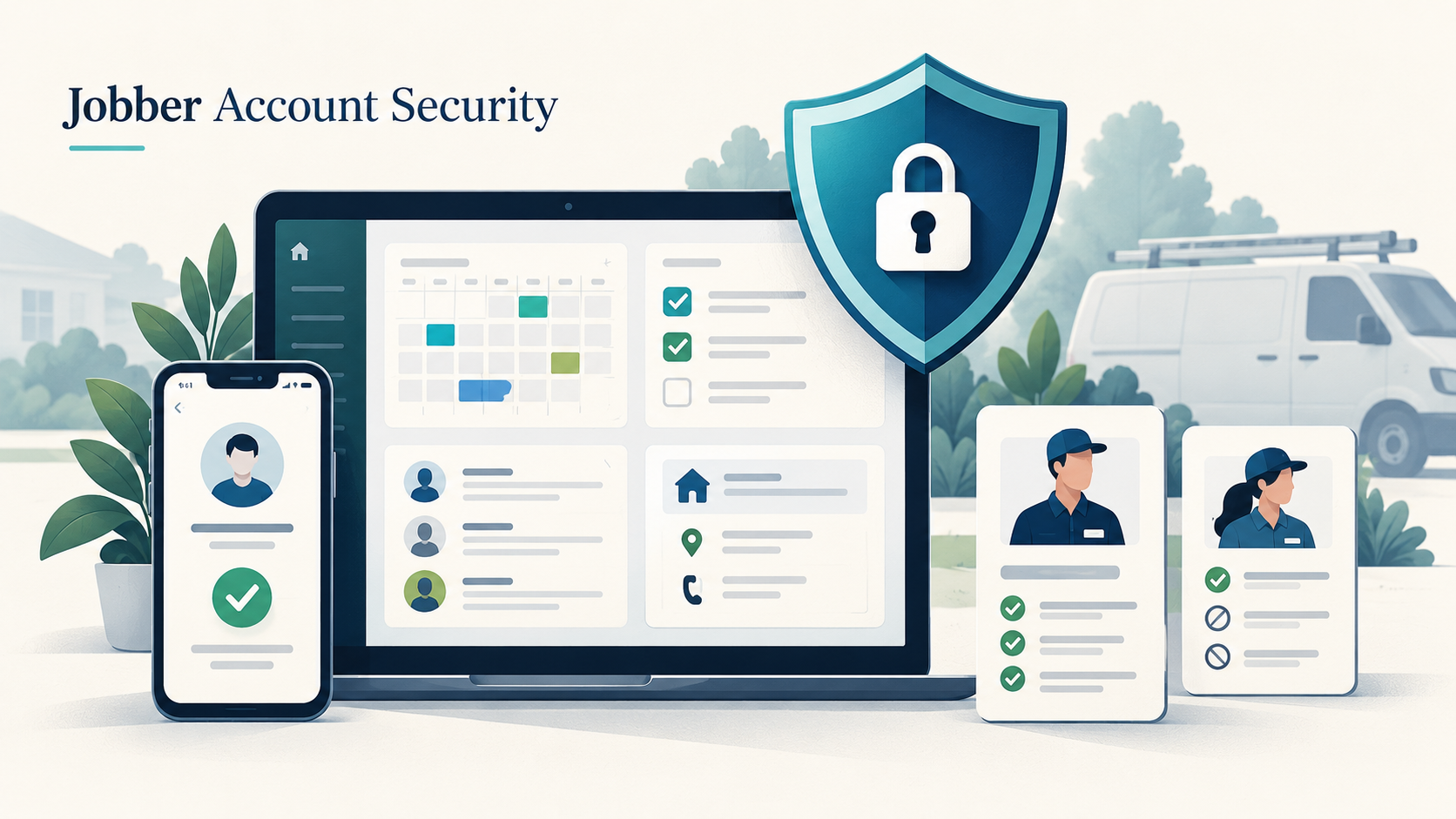
A Jobber account holds client names, addresses, job history, and, for businesses using Jobber Payments, saved payment details. It is also the system a business uses for its schedule, quotes, and invoicing. If that account is compromised, the exposure is not abstract: it is customer records leaving the business and day-to-day operations getting disrupted at the same time.
Jobber includes a handful of account-level settings that reduce this risk directly, plus some practices that depend on how the business itself manages logins and email. None of it requires technical expertise to set up.
Jobber Account Security Settings to Configure or Verify
| Setting | Recommended action | Security benefit |
| Two-step verification | Confirm the account owner has a verified mobile number on file | Adds a code requirement for sensitive Jobber Payments actions and unrecognized devices |
| Employee permissions | Assign each team member the lowest permission level their role needs | Limits what a compromised or careless account can access or change |
| Individual logins | Give every team member their own login instead of a shared one | Makes every action in the account traceable to the person who took it |
| Unique passwords | Use a password for Jobber that is not reused anywhere else | Stops a password leaked elsewhere from also unlocking Jobber |
| Linked email account | Secure the email address tied to the Jobber login with its own strong password | Protects the account Jobber uses for password resets |
| Former employee access | Deactivate a departing employee's Jobber login promptly | Closes access the business no longer intends to grant |
| Unusual-login notifications | Read and act on Jobber's unusual-login alerts when they arrive | Flags a sign-in that does not match normal account activity |
1. Verify the Account Owner's Two-Step Verification Setup
What to configure or verify: The Jobber account owner should confirm a verified mobile phone number is on file for two-step verification. This is set up by the account owner directly in Jobber and requires a number that can receive text messages.
How the protection works: According to Jobber's documentation, two-step verification is required for account owners using Jobber Payments. It does not ask for a code on every login. Instead, Jobber prompts for a six-digit code sent by text message when the account owner signs in from an unrecognized device or makes a sensitive change to Jobber Payments settings. That code requirement is what stops a stolen password alone from being enough to reach payment settings.
Why it matters: Jobber Payments settings control where a business's payment deposits go. A password on its own is not a strong enough barrier around that, since passwords leak through phishing and reused credentials on other breached sites regularly. The extra code means a stolen password is not enough by itself.
Practical example: An account owner's password leaks in an unrelated data breach and gets reused on Jobber. Without two-step verification tied to Jobber Payments, a leaked password could be enough to reach payment settings from an unrecognized device. With it active, the login also needs a code sent to the owner's verified phone, which the attacker does not have.
Plan and feature limitations: Current Jobber documentation ties two-step verification to the account owner and Jobber Payments; it is set up and used by the account owner, not configured by an admin to apply to every employee's login.
Businesses that want a sign-in requirement for every team member should treat the unique-password and individual-login practices below as the control that covers everyone else, since Jobber's documented two-step verification does not extend account-owner enforcement across all employee accounts. The verification code arrives by text message, so a phone that cannot receive SMS, including most VOIP numbers, cannot complete setup.
Official source: Two-Step Verification
2. Give Employees Only the Permissions Required for Their Duties
What to configure or verify: An admin user should review what each team member can see and do in Jobber and assign the permission level that matches their actual job, rather than leaving everyone on a broad default.
How the protection works: Jobber's documentation describes four preset permission levels beyond the admin role: Limited Worker, who can view the schedule, mark work complete, and track time; Worker, who can view all clients, quotes, and jobs, including pricing; Dispatcher, who can edit job, team, and client details; and Manager, who can manage most areas except reports and payroll. Permissions beyond these four presets can also be set up individually through Jobber's custom permissions settings. Only admin users can change permission settings for others.
Why it matters: Admin access in Jobber reaches further than any of the preset or custom permission levels: it includes settings, reports, and the information that supports day-to-day business decisions, which is why Jobber positions it for business owners, operations managers, or office administrators rather than field staff. A field technician's login does not need that reach to do their job, and giving it to them anyway means a phished or shared technician login can touch far more than the schedule it was meant for.
Practical example: A seasonal field technician is given full admin access because it is faster than reviewing the permission options. Months later, that technician's login credentials are reused from a breached personal account and compromised. Because the account held admin-level access, the exposure includes client records and business settings the technician's actual job never required, not just the jobs assigned to them.
Plan and feature limitations: Team size varies by Jobber plan, which affects how many separate logins a business can set up in the first place; businesses should confirm their current plan's user count and permission options directly in Jobber's account settings, since plan details change. Permission levels and custom permissions apply per individual user; they do not retroactively restrict access someone was already granted under a broader role until an admin changes it.
Official source: What Are User Permissions?
Additional Jobber Account Security Practices
Give Every Employee Their Own Login
Jobber's own guidance recommends that each team member use an individual login rather than a shared one. A shared login means a departing employee, a compromised password, or a mistaken change in the account cannot be traced to one person. With individual logins, Jobber records who completed a visit, approved a quote, or changed a client record, which makes both day-to-day accountability and incident response far more workable.
Use a Unique Password for Jobber
Jobber recommends a password built from a mix of character types, and specifically recommends against reusing a password from another account. A password that is unique to Jobber means a breach at an unrelated website does not also hand an attacker a working password for client and payment data.
Secure the Email Account Linked to Jobber
The email address on a Jobber login is also the account Jobber uses to send a password reset. If that inbox is compromised, an attacker can request a Jobber password reset through it regardless of how strong the original Jobber password was. Securing that email account with its own unique, strong password closes a path into Jobber that has nothing to do with the Jobber password itself.
Remove a Former Employee's Access Promptly
When someone leaves the business, their Jobber access should be deactivated, not left active. Jobber's documentation describes deactivating a team member from the Manage Team page, either through the three-dot menu next to their name or the deactivate option on their user profile. Jobber recommends reassigning any of that person's incomplete scheduled work to another team member before deactivating them, since a deactivated user is unassigned from unfinished visits, tasks, and reminders.
Respond to Unusual-Login Notifications
Jobber notifies account users, by an in-account banner and by email, when it detects a login that looks out of the ordinary for that account. Jobber's own documentation notes this can be triggered by ordinary activity, such as logging in while traveling, using a VPN, or setting up a new device, not only by an actual intrusion. In some cases, Jobber places the account into a safe mode that restricts certain actions until the login is confirmed as legitimate. If a login was not recognized and the account was moved into safe mode, Jobber's guidance is for the account owner to contact Jobber support directly so the account can be verified as secure.
What the Activity Feed Shows, and What It Does Not
Jobber's Activity Feed gives a real-time list of recent actions in the account, such as an approved quote or a completed visit, along with who took the action. Jobber's documentation states the feed covers up to the last 100 actions and is available on the Connect and Grow plans; what a given user sees in it is scoped by that user's own permissions. It is a useful place to notice something that looks wrong, but it is not documented as a complete, exportable security audit log, and Jobber's public help content does not specify how far back action history is retained beyond that recent window. Treat it as a visibility tool that supports the settings above, not a replacement for them.
Jobber Account Security Closing Checklist
- Account owner has a verified mobile number on file for two-step verification
- Each employee's permission level matches what their role requires
- Every team member has their own individual Jobber login
- Jobber's password is unique and not reused from another account
- The email account linked to Jobber has its own strong, unique password
- Former employees' Jobber access is deactivated promptly after they leave
- Unusual-login notifications are read and acted on when they arrive
This covers the account security settings Jobber documents today. It is one part of protecting a service business; how the business handles devices, networks, and the people who use them day to day matters as well.
Official sources: Two-Step Verification, What Are User Permissions?, Manage Team: How to Add, Manage, and Deactivate Team Members, Why Am I Being Notified About an Unusual Login on Your Jobber Account?, Security & Passwords, What Is the Activity Feed?
Not sure which of these are already configured?
Truvo reviews the business tools a company runs on, including platforms like Jobber, as part of an effective security program, then hands over the evidence.
Ready to Start Your Compliance Journey?
Get a clear, actionable roadmap with our readiness assessment.
Contact Us
Sample SOC 2 Control List
Input your email to download the list.
About the Author

Former security architect for Bank of Canada and Payments Canada. 20+ years building compliance programs for critical infrastructure.