
.svg)
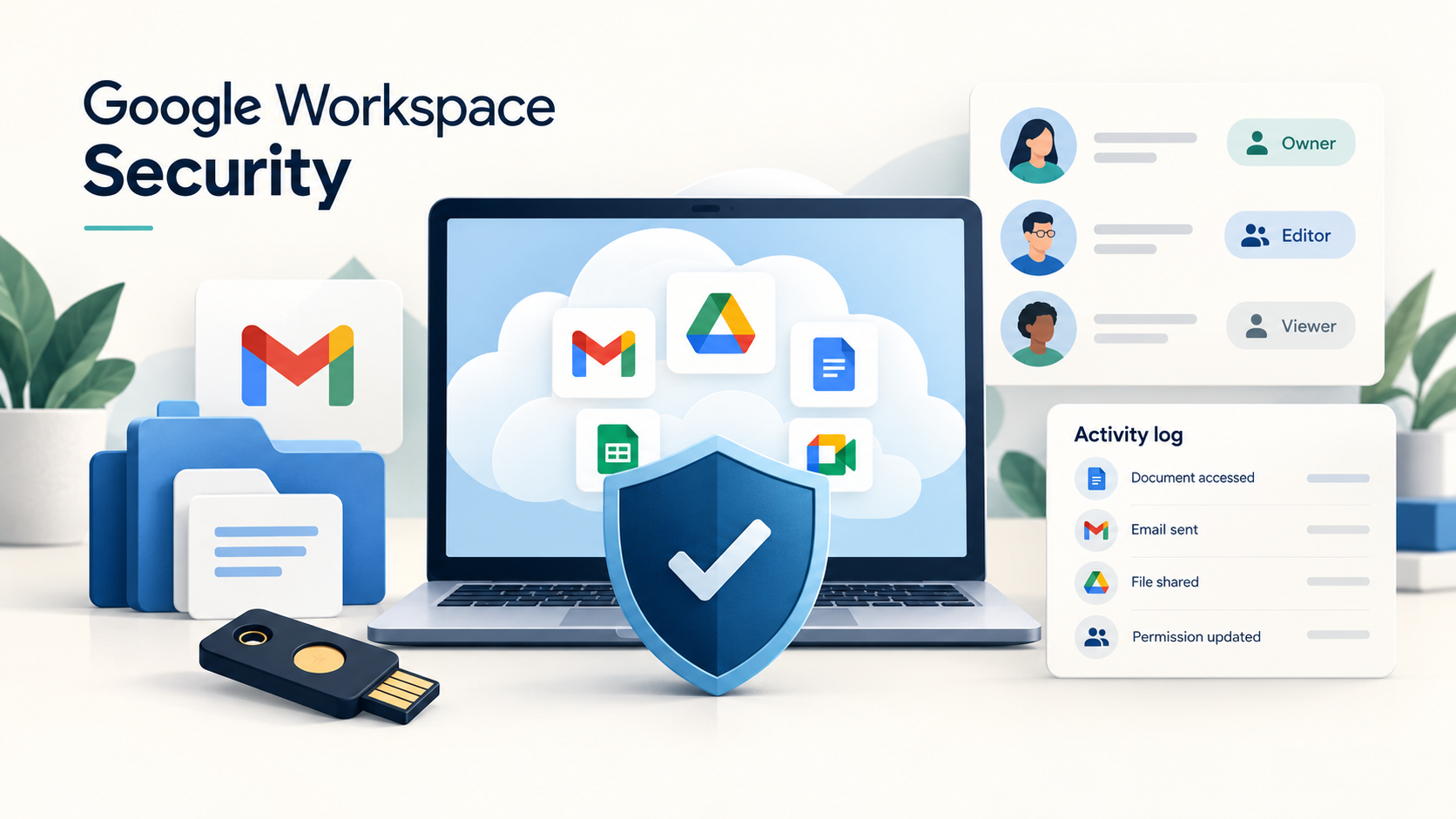
A Google Workspace account is not secured by default just because Google operates the infrastructure behind it. Google secures the servers; the business is responsible for configuring the account settings that control who can sign in, what gets shared outside the company, and what happens if a password leaks. Most of that configuration lives in the Admin console and takes a few minutes per setting.
The eight settings below do the most to stop two incidents that routinely hit small businesses: an attacker getting into one employee's mailbox, and a file or email leaving the company that should not have. None of them require a dedicated IT or security team to turn on.
8 Google Workspace Settings That Stop Account Takeover and Data Leaks
| Setting | Recommended action | Security benefit |
| Multi-factor authentication | Require 2-Step Verification for every user and admin | Stops a leaked password alone from being enough to sign in |
| Administrator accounts | Give admins a separate account just for admin work | Limits what an attacker gets if the daily account is phished |
| Administrator privileges | Use scoped custom roles instead of full Super Admin for everyone | Reduces how much damage one compromised admin account can do |
| External Drive sharing | Restrict sharing to trusted domains or turn it off | Prevents company files from being shared outside the business by accident |
| Third-party app access | Review and restrict which apps can read or write Workspace data | Closes a path attackers use that does not need a password at all |
| Automatic email forwarding | Turn off uncontrolled forwarding, or restrict it to internal addresses | Stops attackers from silently copying mail, including password resets |
| Suspicious-login alerts | Confirm admin alerts for suspicious sign-ins are active | Flags account takeovers while they are still happening |
| Audit log reviews | Check the Admin console's audit logs on a regular schedule | Catches changes and access patterns nobody would otherwise notice |
1. Require MFA for All User and Administrator Accounts
Recommended configuration: In the Admin console, under Security, Authentication, 2-Step Verification, turn on enforcement so every user must complete a second verification step to sign in, not just enter a password.
What this means: Google calls its version of this feature 2-Step Verification (2SV). Multi-factor authentication (MFA) is the general industry term for the same idea: proving who you are with more than one type of evidence, not just a password. Two-step verification is specifically Google's implementation of MFA, so the two terms describe the same category of control but are not interchangeable names for different things.
Risk it reduces: Passwords leak constantly, through phishing pages, reused passwords from other breached sites, and malware on an employee's device. Without a second factor, a leaked password is immediate access to the account, including email, files, and anything connected through Google sign-in. With a second factor required, the password alone is not enough.
Not every second factor is equally strong. Workspace supports several methods, and they are not interchangeable in security terms:
- Security keys and passkeys are the strongest option available, because they are resistant to phishing: a fake login page cannot trick a security key into approving a sign-in the way it can trick a person into typing an SMS code. A passkey can be device-bound, meaning it lives only on one physical device (a hardware security key or a phone's secure chip) and cannot be copied off it, or synced, meaning it is stored in a password manager or a device's cloud keychain and becomes usable across a person's other devices. A passkey is typically unlocked with a PIN or a biometric check such as a fingerprint or face scan, rather than typed like a password.
- Authenticator apps generate a rotating code on the phone itself and do not rely on the phone network, which makes them meaningfully stronger than text message or phone call codes.
- SMS text messages and automated voice calls are the weakest widely used option. Two specific attacks make them risky: SIM swapping, where an attacker convinces a mobile carrier to move a victim's phone number onto a SIM card the attacker controls, and fraudulent number porting, where an attacker transfers the number to an entirely different carrier under their control. Either attack lets the attacker receive the verification code without ever touching the employee's phone.
Practical example: An employee's password leaks in an unrelated website breach and gets reused on their Google Workspace account. Without 2SV, that is enough for an attacker to log in. With 2SV, the attacker is also blocked by a code or prompt they do not have, unless they have also compromised the phone number itself through SIM swapping, which is a far higher bar.
Implementation note: Enforcement should be rolled out after users have had the chance to enroll a verification method; forcing it on with nobody enrolled locks people out. Where the business can support it, security keys or passkeys should be preferred over SMS and voice codes for any account with elevated access, such as administrators.
Official source: Deploy 2-Step Verification
2. Use Separate Administrator Accounts
Recommended configuration: Anyone who manages the Google Workspace Admin console should have a dedicated account used only for that work, separate from the account they use for everyday email and calendar.
What this means: Instead of granting admin privileges directly to someone's regular inbox, a second account is created specifically for Admin console tasks, and the person switches to it only when doing admin work.
Risk it reduces: A daily-use email account is the one most exposed to phishing links, risky attachments, and browser extensions. If that same account also holds Super Admin privileges, a successful phishing attempt against the employee's everyday inbox hands the attacker control of the entire Workspace account. Keeping admin access on a separate, rarely used account shrinks that exposure considerably.
Practical example: An owner who uses owner@thecompany.com for both daily email and Admin console management is one convincing phishing email away from losing control of every mailbox and file in the company. A separate admin-only account that is never used to click email links removes that single point of failure.
Implementation note: A dedicated admin account typically still needs its own license seat, which is a real cost consideration for a very small team. For a one- or two-person company, this may mean weighing the cost of an extra seat against the risk of running admin privileges on a daily-use inbox; it does not change the recommendation, only the planning around it.
3. Limit Administrator Privileges
Recommended configuration: Reserve full Super Admin access for a small number of people, and assign everyone else a scoped custom admin role that only includes the privileges their job requires.
What this means: The Admin console supports prebuilt roles and custom roles, and a custom role can be limited to specific tasks, such as resetting passwords or managing a single app, without granting the ability to change billing, security policy, or other administrators.
Risk it reduces: A compromised admin account is dangerous in proportion to what that account is allowed to do. An account scoped to password resets can cause limited damage if compromised; a Super Admin account can reconfigure security settings, access any user's data, and create new admin accounts of its own.
A small business facing a limited budget for admin headcount sometimes defaults to making two or three people Super Admins, on the reasoning that it is simpler than scoping roles individually. That number is worth treating as a starting point to question, not a target to hit: it is a common small-business pattern, not a universal maximum, and the right number depends on the business. What does not change with company size is the reason to keep more than one Super Admin at all: a single Super Admin with no backup is a recovery risk if that person leaves, loses access, or is unavailable when something needs fixing urgently.
Practical example: A bookkeeper who occasionally needs to reset a colleague's password does not need the ability to change Drive sharing settings or create new users. A custom role scoped to password resets gives them exactly what the job requires and nothing more.
Implementation note: A user holding a custom admin role can never modify another administrator's account, including a Super Admin's, which limits how far a compromised custom-role account can reach even in the worst case. The Super Admin role itself cannot be assigned to a group; it has to be granted to individual accounts directly.
Official sources: Prebuilt administrator roles, Create, edit, and delete custom admin roles
4. Restrict External Google Drive Sharing
Recommended configuration: In the Admin console, under Apps, Google Workspace, Drive and Docs, Sharing settings, Sharing options, set external sharing to Off, or allow sharing only with specific trusted domains rather than leaving it open to anyone.
What this means: By default, Drive sharing settings can allow files to be shared with any external Google account, including personal Gmail addresses, with nothing but a link. Restricting this narrows that down to either no external sharing at all or sharing limited to domains the business explicitly trusts, such as an accountant's firm.
Risk it reduces: Unrestricted external sharing is a common way sensitive files leave a company by accident, not through an attack. An employee shares a folder broadly to make collaboration easier, forgets to remove access later, or shares with the wrong email address entirely. Restricting the setting at the organization level removes the chance of that mistake rather than relying on every employee to be careful every time.
Practical example: A business sharing financial statements with its accounting firm can allowlist that firm's domain specifically, so collaboration with that one trusted partner still works while sharing to any other outside address is blocked by default.
Implementation note: These settings can be applied to the whole organization or to a specific organizational unit or group, which matters if different departments need different sharing rules. One detail worth knowing: the restriction applies at the individual user level, not the group level, so if a file is shared with a group that includes some blocked external users, those specific people still cannot open it even though the group as a whole has access.
Official source: Manage external sharing for your organization
5. Restrict Third-Party App Access
Recommended configuration: In the Admin console's app access controls, review which third-party applications can connect to Workspace through Google sign-in, and set each one to an appropriate access level rather than leaving every app unrestricted by default.
What this means: This is a different control from deciding whether an app can be installed or used for sign-in at all. A user signing in to a scheduling tool or a marketing platform with their Google account is a separate question from what that tool is then allowed to do with the company's Workspace data once connected. Google's app access controls let an admin mark a given app as Trusted, Limited to safer data scopes, restricted to specific Google data, or Blocked entirely.
Risk it reduces: Employees connect third-party tools to their Google account routinely, often without reading exactly what access they are granting. A tool that only needs to see a calendar might request, and receive, permission to read and delete files in Drive if the request is approved without review. Restricting what connected apps can access limits the damage if one of those tools is later compromised, shuts down, or turns out to be less trustworthy than it looked at signup.
Practical example: A marketing app connected for calendar scheduling requests access to "see, edit, create and delete all your Google Drive files." Approving sign-in access does not mean that broader data request should also be approved; reviewing and limiting it to what the app needs for its stated purpose closes that gap.
Implementation note: This requires an initial review of apps already connected, not just new ones going forward, since employees have often connected tools over time without anyone checking. OAuth app allowlisting lets an admin pre-approve specific trusted apps rather than reviewing every connection request individually once the list is established.
Official source: Control which third-party & internal apps access Google Workspace data
6. Disable Uncontrolled Automatic Email Forwarding
Recommended configuration: In the Admin console, under Apps, Google Workspace, Gmail, End User Access, Email forwarding, turn off automatic forwarding, or restrict it so forwarding is only allowed to addresses inside the company's own domain.
What this means: Gmail lets a user set up a filter that automatically forwards incoming mail to another address. Left uncontrolled, any user, or anyone who gains access to a user's account, can quietly redirect a copy of all future email to an outside address.
Risk it reduces: This is one of the most damaging things an attacker can do after breaking into even one mailbox, because it keeps working after the original break-in is forgotten. An attacker who compromises a mailbox once, even briefly, can set a forwarding rule and then let the account's legitimate owner change their password, log back in, and assume the problem is solved, while every email still gets silently copied out. That includes password-reset emails for other services tied to that inbox, invoices, and sensitive internal threads, all arriving in the attacker's hands going forward with no further action needed from them.
Practical example: An attacker briefly accesses a mailbox through a phished password, sets a forwarding rule to an external address, and does nothing else suspicious. Weeks later, a vendor invoice arrives and is intercepted through the forwarding rule; the attacker sends a near-identical invoice from a lookalike domain with different bank details before the real one is noticed. The original password compromise might get caught and fixed; the forwarding rule, if nobody is specifically looking for it, keeps running regardless.
Implementation note: Turning off forwarding entirely is the strongest setting; restricting it to internal domain addresses only is a middle option if some internal forwarding between company addresses is genuinely needed. Changes to this setting can take up to 24 hours to apply across all accounts, so it should not be treated as instant.
Official source: Disable automatic forwarding
7. Configure Suspicious-Login Alerts
Recommended configuration: Confirm that admin email alerts for suspicious sign-in activity are turned on, so administrators are notified directly rather than having to go looking for a problem.
What this means: Google's Alert Center can flag sign-ins that do not match a user's normal pattern, such as a login from an unexpected location. In many cases, Google challenges the user with an extra verification step first; if the user fails or ignores that challenge, an alert is sent to the admin.
Risk it reduces: Without active alerting, an account takeover can go unnoticed for as long as the attacker chooses to stay quiet. Alerts turn a pattern Google's systems already notice into something a human at the company sees and can act on quickly.
Practical example: An alert arrives showing a sign-in attempt to an employee's account from a country the business has no operations in, outside normal working hours. If the employee was not traveling, that is a clear signal to reset the account's password and review its recent activity immediately, rather than finding out about the compromise weeks later from a different symptom.
Implementation note: When an alert fires, the standard response is to confirm with the named user whether the sign-in was legitimate, and if it cannot be confirmed, reset the account's password and review what the account did while compromised. Enrolling all users in 2-Step Verification, as covered in the first recommendation, also reduces how often these alerts fire in the first place, since most suspicious sign-in attempts get stopped by the second factor before they reach the alerting stage at all.
Official source: About admin alerts for suspicious login activity
8. Verify Audit-Log Access and Establish Regular Reviews
Recommended configuration: Confirm the business can view its Admin console audit logs, covering admin actions, logins, and app activity, and set a recurring schedule, such as monthly, to look at them rather than leaving them unused.
What this means: This is two separate things worth telling apart. Every Workspace edition includes basic audit log viewing in the Admin console's Reports section, covering activity such as admin changes, user logins, and Drive access, for a retention period that varies by report type and edition.
Exporting those logs to BigQuery for long-term storage and advanced analysis is a separate, additional capability that is only available on specific higher-tier editions, including Frontline Standard and Plus, Enterprise Standard and Plus, Education Standard and Plus, and Enterprise Essentials Plus. It is not included on the Business Starter, Business Standard, or Business Plus editions many small businesses are on.
Risk it reduces: Logs that nobody looks at provide no protection on their own. A regular review habit is what turns the logs the business already has access to into an early-warning system for changes nobody meant to make or logins nobody meant to allow.
Practical example: A short monthly review of the admin log turns up a new admin role that nobody remembers granting, created during a routine software setup months earlier and never revoked. Catching it during a scheduled review, rather than after it is misused, is the entire value of doing the review at all.
Implementation note: A small business does not need BigQuery export to get real value from this recommendation; starting with the built-in Reports audit log and a consistent review habit is enough for most needs. If the business later needs longer retention for a compliance requirement or a cyber-insurance questionnaire, that is the point to evaluate whether an edition upgrade that includes BigQuery export is worth the cost.
Official source: About reporting logs and BigQuery
Quick Reference Checklist for Google Workspace Security Settings
- 2-Step Verification is enforced for every user and administrator
- Administrators use a separate account for admin work, apart from daily email
- Super Admin access is limited to a small, deliberate number of people, with more than one for recovery
- External Drive sharing is restricted to trusted domains or turned off
- Connected third-party apps have been reviewed and limited to the data access they need
- Automatic email forwarding is off or restricted to internal addresses only
- Admin alerts for suspicious sign-in activity are turned on
- Someone has a recurring habit of reviewing the Admin console's audit logs
This is a starting checklist, not a complete security program. Google Workspace configuration is one part of protecting a small business; device security, employee awareness, and how the business handles the vendors and apps connected to its data all matter as well.
Not sure which of these are already configured?
Truvo reviews Google Workspace configuration as part of an effective security program, then hands over the evidence.
Ready to Start Your Compliance Journey?
Get a clear, actionable roadmap with our readiness assessment.
Contact Us
Sample SOC 2 Control List
Input your email to download the list.
About the Author

Former security architect for Bank of Canada and Payments Canada. 20+ years building compliance programs for critical infrastructure.